

How to check the currency conversion fee?
Updated August 12, 2025
Step-by-Step Instructions:
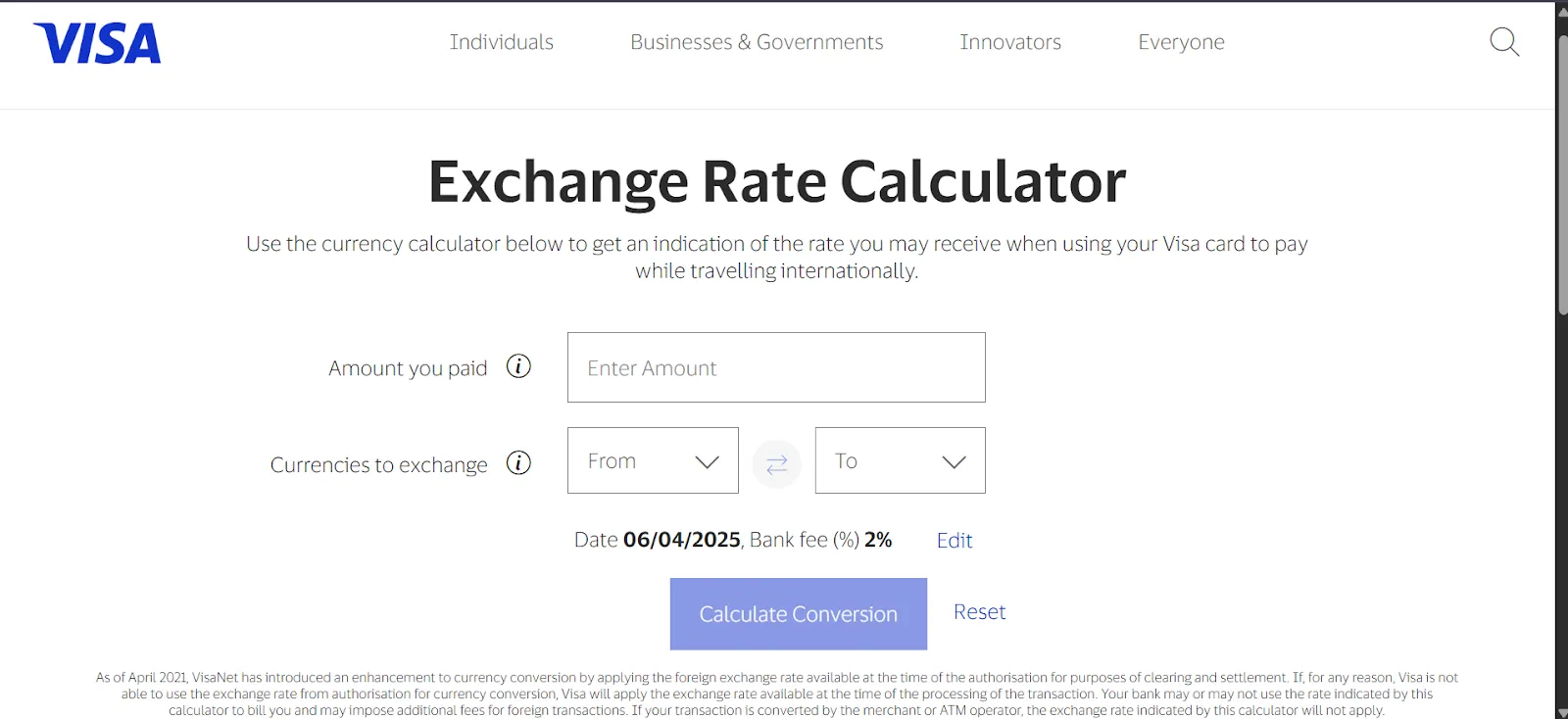
Step 1: Open the VISA Exchange Rate Calculator
-
Go to this link: https://www.visa.co.in/support/consumer/travel-support/exchange-rate-calculator.html
-
**Step 2: Choose the Date of the Transaction
**
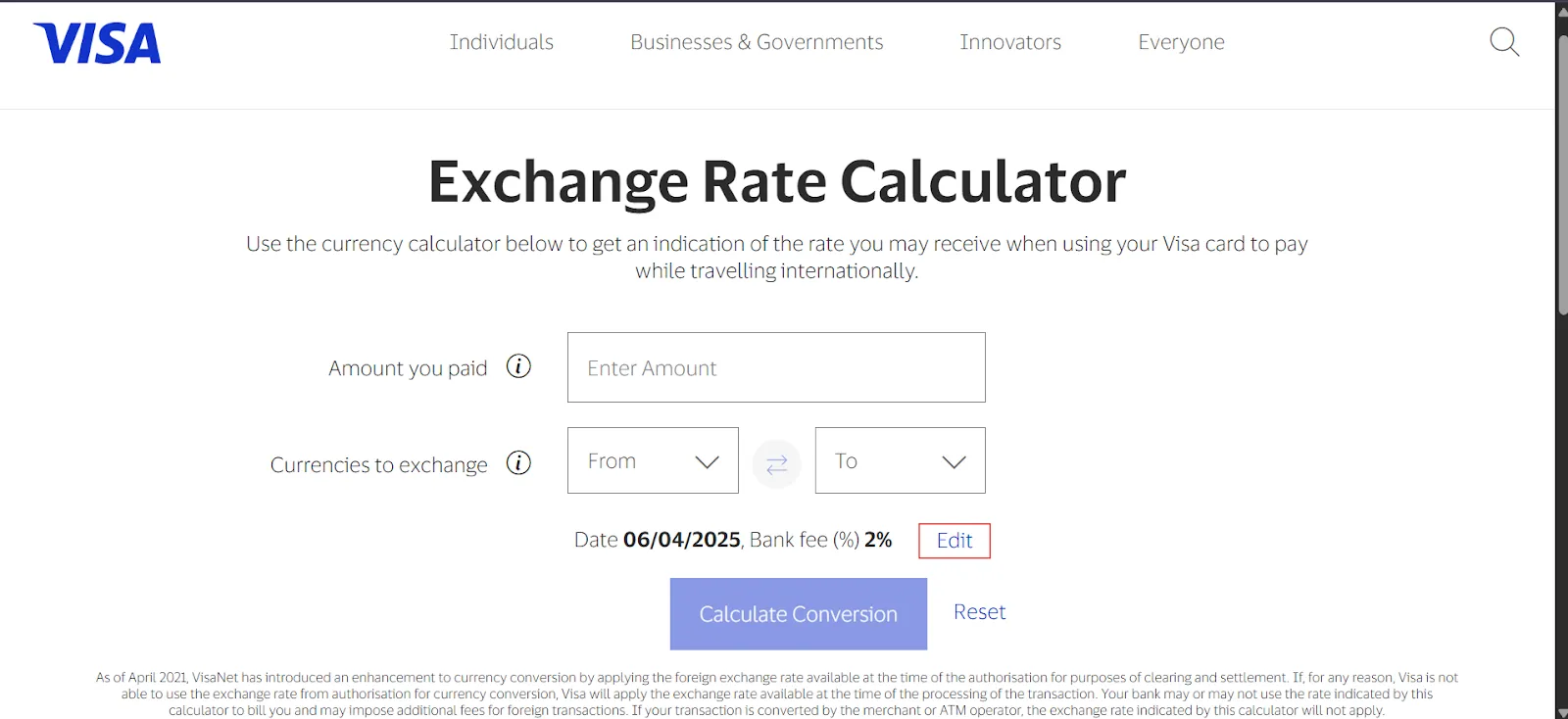
Click on Edit Option.
-
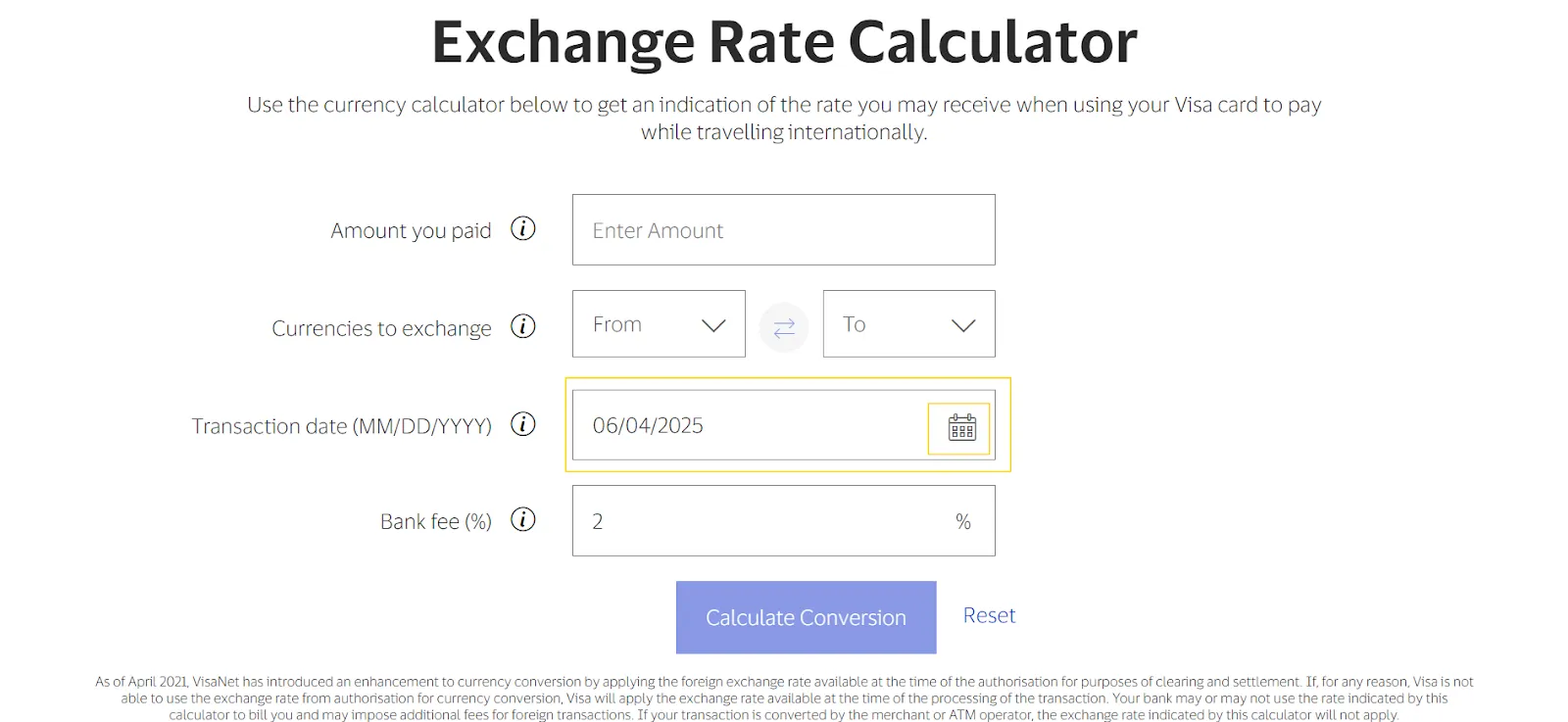
Under “Date of Transaction”, select the exact date when your transaction took place.
Step 3: Enter the Transaction Amount and Currency
-
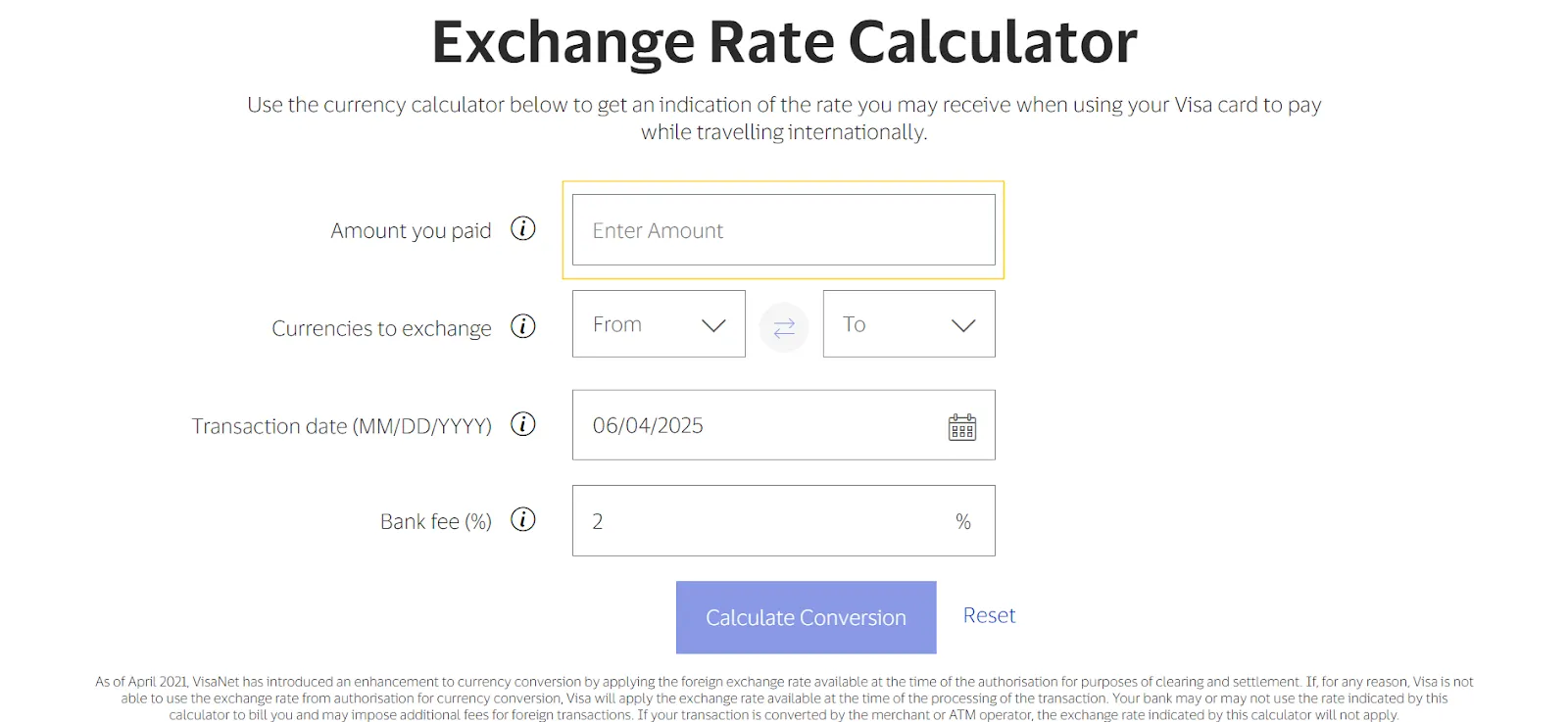
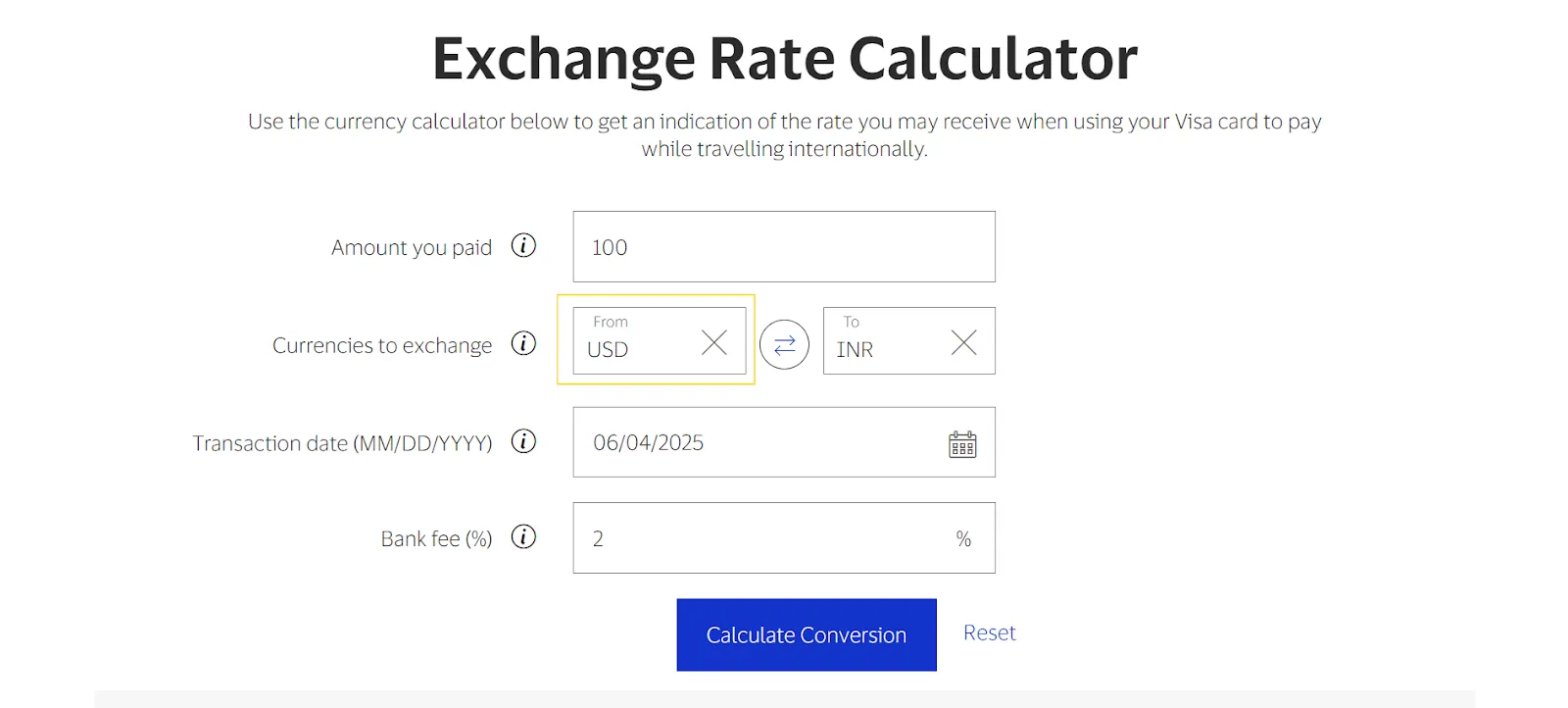
In “Transaction Amount”, type the amount you spent or are planning to spend.
-
In “Transaction Currency”, choose the foreign currency you used or are using (e.g., USD, EUR, GBP).
Step 4: Enter Your Billing Currency
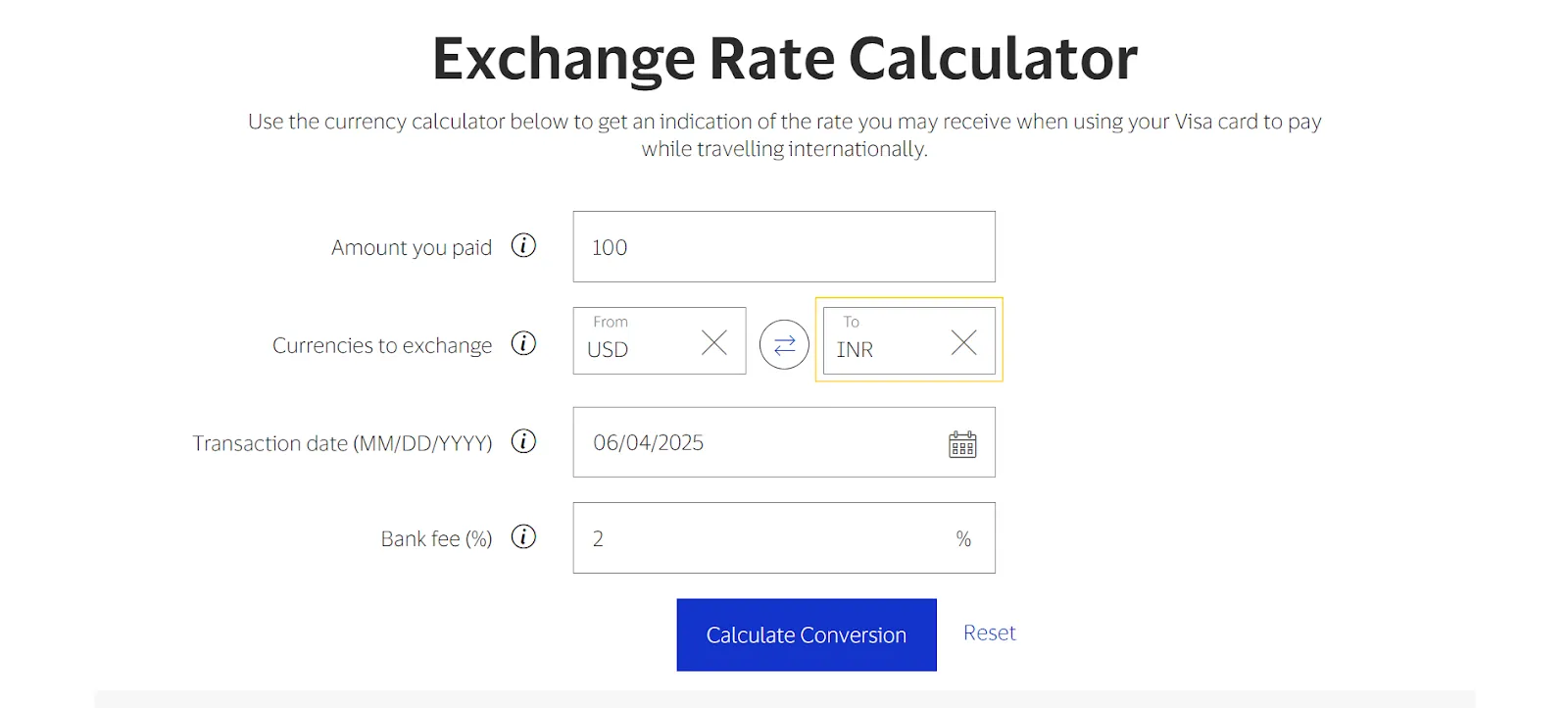
- In “Your Card is Issued in”, select the currency of your card or bank account (e.g., INR for Indian Rupees).
Step 5: Add the Bank Fee (Currency Conversion Fee)
-
Under “Bank Fee (%)”, enter:
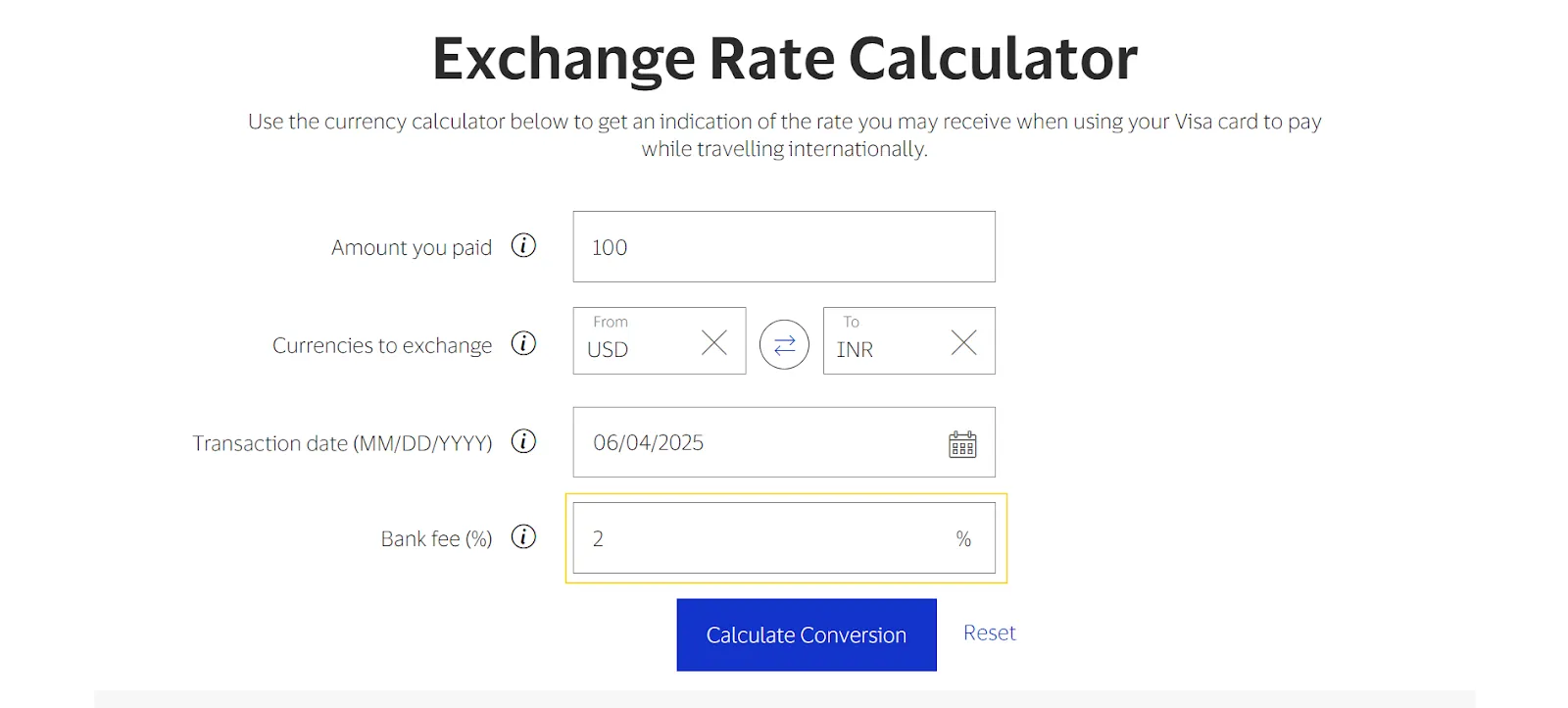
- 2% if you’re on the Standard plan
1% If you’re on the Premium plan
- 2% if you’re on the Standard plan
Step 6: Click “Calculate”
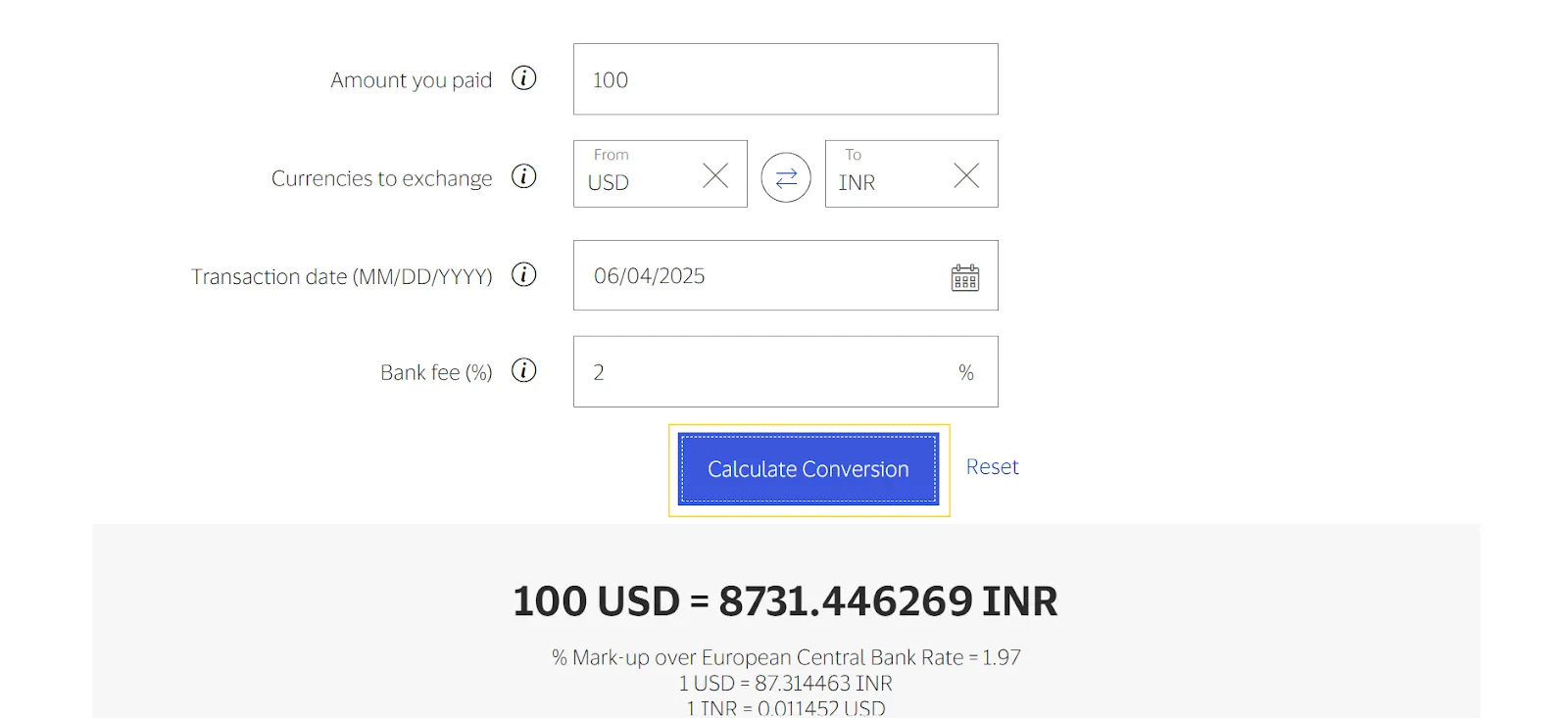
- Click the “Calculate Conversion” button to see:
-
The exchange rate used
-
The converted amount you’ll be charged
-
The total cost including the bank fee
-
Example:
- Transaction Date: 04 June 2025
- Transaction Amount: 100
- Transaction Currency: USD
- Billing Currency: INR
- Bank Fee: 2% (for Standard plan) and 1% (for premium plan)
Click Calculate to get the INR equivalent with the applied conversion fee.